
There’s a particular kind of dread that comes with a video file that won’t open. Not the clean frustration of a deleted file — that’s fixable, usually. This is different. You click it, the player spins for a second, and then nothing. Or it opens to a black screen. Or two seconds of garbled frames and then a hard stop.
I’ve been there more than once. A timelapse I’d spent three nights setting up, killed by an SD card that decided to give up mid-transfer. A concert clip from a show that genuinely can’t be replicated, corrupted because my phone died in my pocket before it finished writing. These things happen constantly, to people who should know better and to people who didn’t know the risk existed in the first place.
The thing most people don’t realize is that “corrupted” rarely means gone. More often it means broken — structurally damaged in a way that prevents playback, but with the actual footage data still sitting there underneath. Video repair software exists to fix exactly this, and it’s gotten genuinely good over the past few years.
I’ve tested and used a handful of these tools across different scenarios. Below is what I’d actually recommend, and why.
Why Video Files Break (The Short Version)
Worth understanding before you start throwing tools at the problem, because the type of corruption affects which approach works.
Video files are containers. An MP4, MOV, or AVI isn’t just raw footage — it’s a structured file with a header that tells media players what’s inside, where the video and audio streams start, what codec was used, how long the clip runs. Damage that header, and the player has no map. It refuses to open the file even if everything underneath is perfectly intact.
That’s the most common situation, and it’s the most fixable. Header damage is usually caused by a power cut mid-recording, a bumped card during transfer, or a device that crashed before it could finalize the file.
More serious is physical damage to the storage media itself — bad sectors on an SD card or hard drive that cause actual chunks of data to become unreadable. You’ll see this as stuttering, blocky artifacts, or sections that just drop out. Depending on where the bad sectors hit, some of this is recoverable and some isn’t.
Then there’s the camera-crash scenario: the file exists, it has data in it, but the recording was never properly closed. The container is technically incomplete. Players see an unfinished file and throw up their hands.
Audio sync drift, codec mismatches, incomplete downloads — these are the minor league of corruption. Most tools handle them without much trouble.
The Six Tools Worth Using
At a Glance
| Tool | What It’s Best At | Windows | Mac | Batch Repair | Preview Free |
| Stellar Repair for Video | Heavy corruption, widest format support | ✓ | ✓ | ✓ | ✓ |
| Wondershare Repairit | Simplest experience, all-in-one | ✓ | ✓ | ✓ | ✓ |
| EaseUS Fixo | Camera/drone footage, photos too | ✓ | ✓ | ✓ | ✓ |
| 4DDiG File Repair | Repair plus AI quality boost | ✓ | ✓ | ✓ | ✓ |
| Remo Repair | MOV and AVI specifically | ✓ | ✓ | ✗ | ✓ |
| Kernel Video Repair | Free, light damage | ✓ | ✗ | ✗ | ✓ |
-
Stellar Repair for Video— The One I Keep Coming Back To
I want to be upfront: Stellar costs more than most alternatives. That’s a real consideration. But for footage that genuinely matters — the kind you can’t reshoot — the gap in capability between Stellar and the next tier of tools is large enough that the price difference stops feeling relevant.
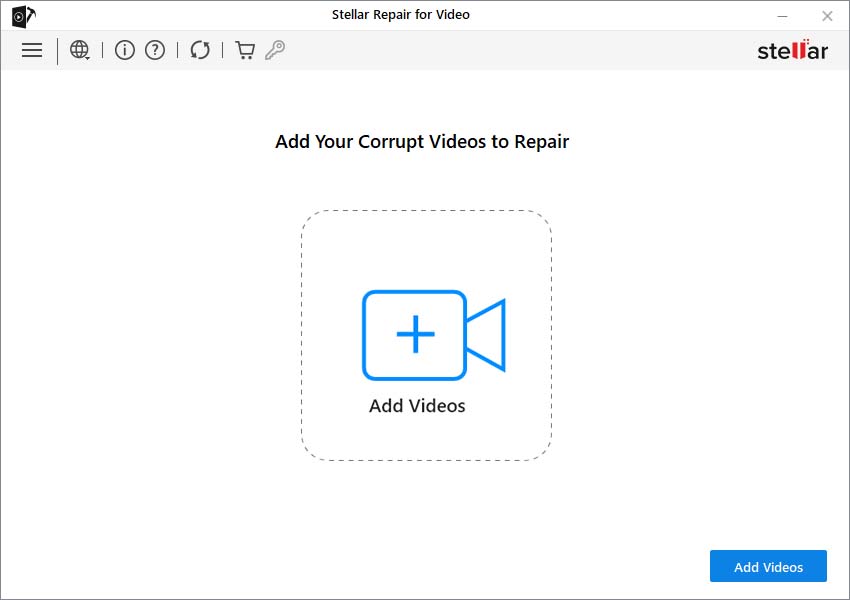
Here’s what’s different about how it works. Other repair tools approach a corrupted file by trying to fix the container — patch the header, restore the index, rebuild what’s broken in the file structure. This works fine when the damage is relatively contained. When it isn’t, they fail.
Stellar bypasses the container entirely. It goes after the raw audio and video streams directly, extracts them from the wreckage, reconstructs each one independently, and then packages everything into a clean new file. You’re not patching a damaged file. You’re rebuilding the content from scratch, using what’s actually recoverable.
In practical terms: it handles files that every other tool I’ve tried has given up on. That’s not a marketing claim, it’s just what I’ve seen.
Format support runs wide — MP4, MOV, AVI, MKV, AVCHD, WEBM, MTS, FLV, WMV, MPEG, DIVX, 3GP, F4V. DSLRs, mirrorless cameras, drones, action cameras, smartphones. It covers the field.
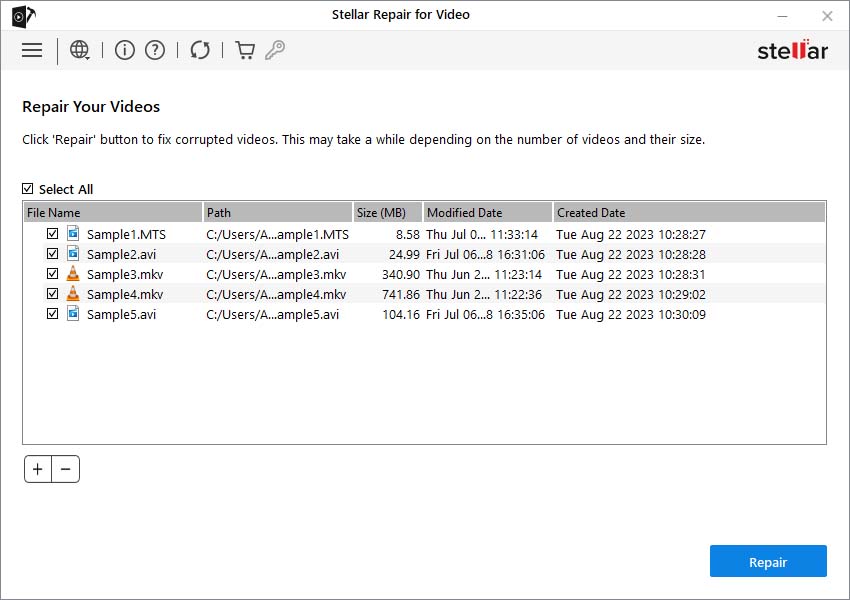
Batch repair is the feature I use most after the repair algorithm itself. When a card fails, it’s rarely just one file. Having a queue rather than processing clips individually matters when you’re working through 30 or 40 damaged files at once.
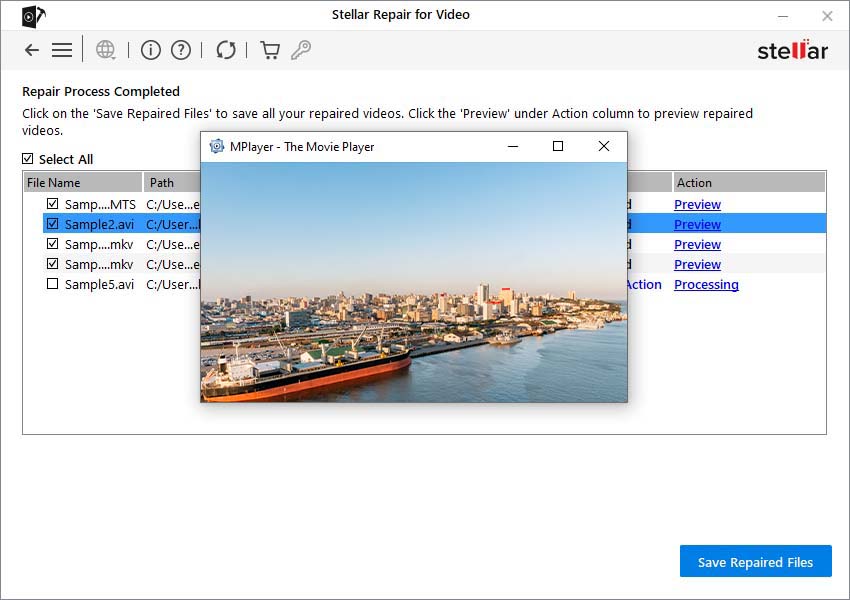
The in-app preview is also genuinely useful and not just a checkbox feature. Before you save anything, you watch the repaired video inside Stellar. You see exactly what you’re getting. If the repair was partial or incomplete, you find out before committing to saving a 6GB file.
Advanced Repair mode is for when standard repair isn’t enough. Give it a healthy clip from the same camera, same format — a quick test video works — and it uses that as a structural template to reconstruct severely damaged footage. I’ve used this on files that looked completely unplayable and come away with usable footage. Not always, but often enough that it’s worth trying before giving up.
Stellar Data Recovery as a company has been around since the late 90s. They know this space. The software shows it.
The trial version lets you repair and preview before purchasing. That matters — it means you can know whether it works on your specific file before spending anything.
My mother-in-law once called me because her phone video from a family trip wouldn’t play. She had no idea what codec meant, didn’t care, and just needed the video fixed. Repairit is what I’d have told her to download.
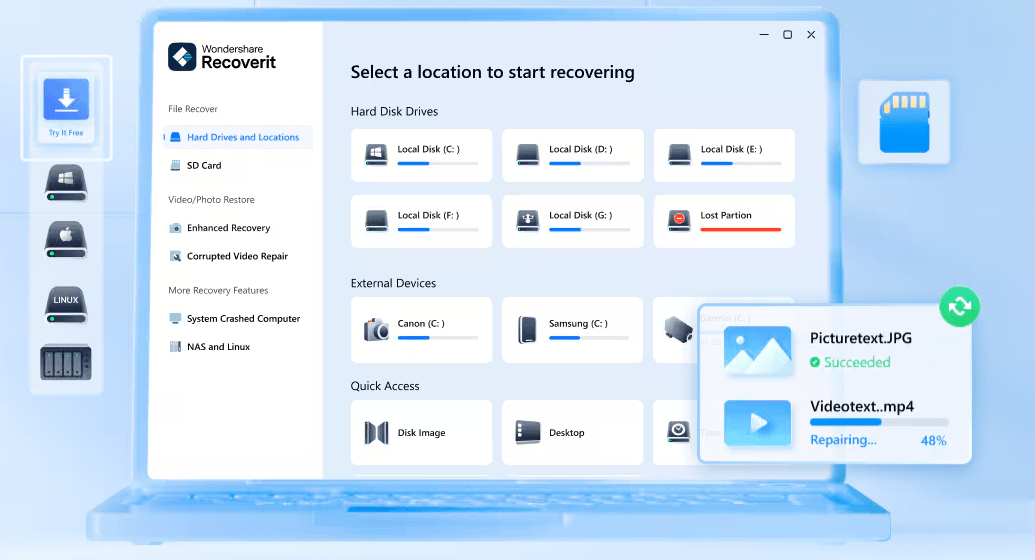
The entire flow is three steps: add the file, click Repair, save the result. No format selection, no mode configuration, nothing to figure out. The interface holds your hand through the whole process and doesn’t ask you to understand anything about what’s happening underneath.
Under the hood it’s doing real work — AI-assisted repair logic for MOV, MP4, M4V, MKV, AVI, and others, covering the usual suspects: power interruptions, botched transfers, incomplete recordings. Advanced Repair mode is available for worse cases, again requiring a sample video from the same device.
The trial structure is reasonable — you preview the repaired output before you pay. Licenses cover up to five devices. Both monthly and lifetime options exist.
Where it falls short: severe or unusual corruption cases, Repairit hits a ceiling that Stellar doesn’t. If you’ve got a heavily damaged file, professional footage, or something in an edge-case format, Stellar will do better. But for the wide middle of video corruption scenarios — the stuff that happens on phone cameras, average consumer SD cards, standard recording devices — Repairit handles it fine, and does so without requiring you to know anything at all about video files.
-
EaseUS Fixo — The Camera Shooter’s Choice
EaseUS has earned credibility in recovery software over a long time, and Fixo is their consolidated repair tool. Its strongest feature from a videographer’s perspective is explicit support for specific camera manufacturers — Canon, GoPro, DJI. These aren’t just format compatibility claims. Different manufacturers have their own quirks in how they structure video containers, write metadata, and handle codec implementation. Fixo accounts for that, and it shows in the results on footage from those cameras specifically.
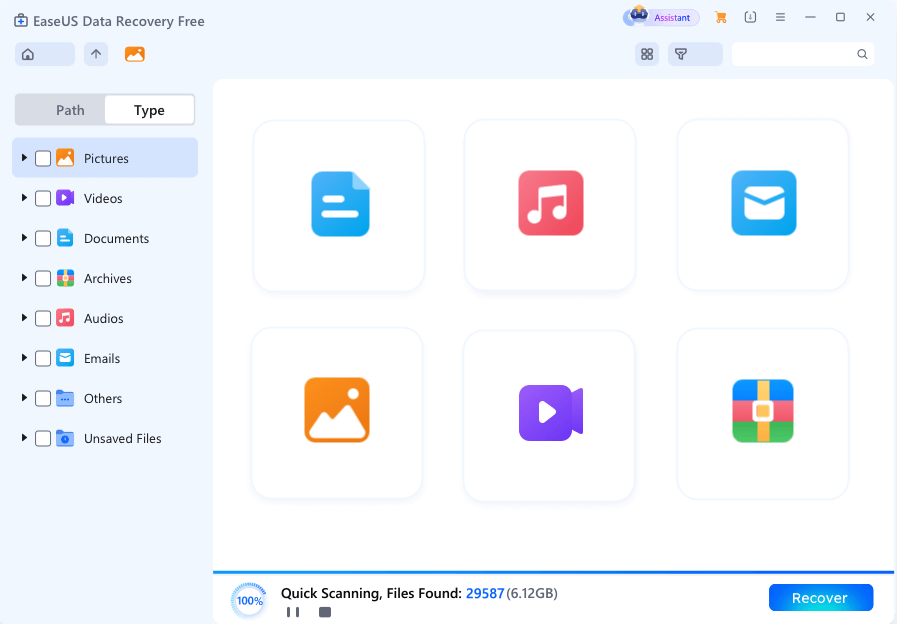
Workflow is clean and simple: three steps, free preview included, no configuration needed.
What separates Fixo from a few competitors is the scope. Beyond video, it repairs corrupted photos — RAW files included — along with Office documents, PDFs, Excel files, and PowerPoints. If your SD card failed mid-shoot and came back with broken video files and broken stills, you don’t need separate tools. Everything goes into Fixo.
For hybrid shooters — anyone running a mirrorless that handles both photo and video — that consolidated repair is worth something concrete, not just on paper. You’ve got one tool, one workflow, one place to look.
-
4DDiG File Repair — For When the File Needs More Than Just Fixing
The standard goal for repair software is: take the broken file, return a working version. 4DDiG does that, and then extends it.

The extra piece is AI-powered enhancement. After repair, you can run the restored file through an improvement pass — upscaling resolution, sharpening detail, correcting color degradation. For footage that was low quality before it got corrupted, or old recordings from cameras that weren’t great to begin with, the output ends up notably better than what you started with.
That’s a genuinely different value proposition. You’re not just recovering footage — you’re recovering a better version of it. For family videos shot on older phones, clips from budget action cameras, or archival material that was always grainy and washed out, this is the tool that makes the most of the recovery.
On the repair side, it handles MP4 and MOV well — the formats that cover most of what people are shooting today. Standard corruption scenarios, header damage, incomplete recordings. Interface is clean, batch repair works, free preview before payment.
-
Remo Repair — The Format Specialist
Remo doesn’t try to do everything. It fixes video files, and within that, it splits into two dedicated products: Remo Repair MOV for QuickTime and MP4 files, and Remo Repair AVI for AVI, XviD, and DivX. Each one is built specifically for its format rather than being a general tool stretched to cover multiple file types.
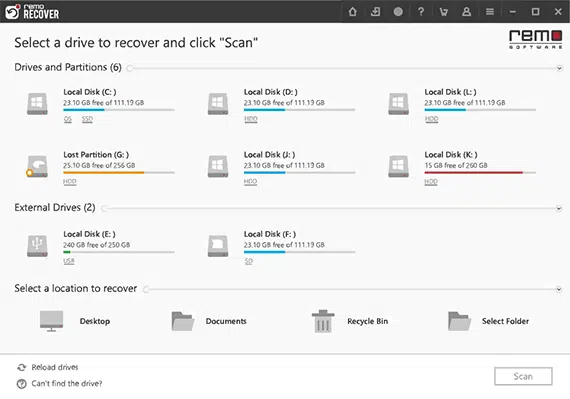
The repair method here is reference-based as the default — you provide a healthy clip from the same camera and format, and Remo uses its structure to reconstruct your damaged file. This is the same technique that Stellar uses in Advanced Repair mode, except here it’s how the tool works from the start.
One thing worth knowing: Remo operates in read-only mode throughout. It never touches or modifies your original file. You’re working from a copy the whole time, which means running it carries no risk of making a bad file worse. That’s a comfort when you’re already stressed about losing footage.
The frustration with Remo is the split product structure. If you shoot Canon MOV files and also work with AVI footage from an older camera or security system, you need to buy two separate licenses. There’s no bundle, no combined version. For people who regularly deal with both formats, that’s an unnecessary inconvenience and it’s worth factoring into the decision.
-
Kernel Video Repair — Try This Before You Pay for Anything
Free, functional, and honest about its limits.
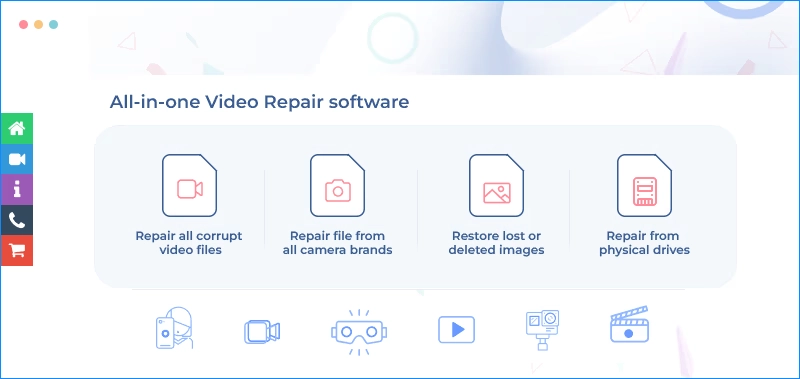
Kernel Video Repair handles AVI, ASF, WMV, MKV, MP4, WEBM, and DIVX on Windows. For straightforward corruption — basic header damage, minor codec errors, simple transfer interruptions — it works, and it works without costing anything. Preview before saving is included, so you can verify results before committing.
The ceiling is real. No batch processing. No advanced reference-based repair. Files with bad sector damage, severely incomplete recordings, or complex structural problems will be beyond it. Windows only, so Mac users are out.
Use it as a first pass. If it fixes the file, you’ve saved yourself both money and time. If it doesn’t, you’ve learned something about the severity of the damage and you move on to a paid tool knowing more than you did.
Making the Call
The decision usually comes down to two questions: how bad is the damage, and how much does the footage matter?
For footage you can’t lose — client work, events that can’t be rerun, travel memories that took years to collect — spend the money on Stellar and use the trial to verify it works on your file before paying. The success rate on difficult files justifies the cost.
For most everyday corruption scenarios, Wondershare Repairit covers the territory with less friction. Run the trial, see if it fixes your file, pay if it does.
If you’re a photographer-videographer hybrid working with Canon, GoPro, or DJI gear, EaseUS Fixo earns its place specifically because of device support and cross-file type repair.
Old footage you want to look better after recovering it? 4DDiG is the only tool here that handles repair and enhancement together.
Working primarily in MOV or AVI with consistent camera systems? Remo’s format-specific approach is worth considering.
And before any of the above — try Kernel first. It’s free, it works on a lot of common cases, and there’s no reason not to.
Three Things to Do Before You Run Any of These
- Duplicate the damaged file before you start. Work on the copy. Some tools modify files during repair, and you need the original intact in case you want to try something else or something goes wrong.
- Start with the Quick or Standard repair mode. Every paid tool here has a faster default mode before the intensive advanced option. The fast mode resolves more cases than you’d expect. Use it first and save the advanced mode for when you need it.
- Have a reference clip ready if you’re using Advanced Repair. Stellar, Repairit, and Remo all have modes that use a healthy video from the same camera as a guide. Find that clip before you start the repair — a short test recording from the same device works perfectly. Not having it ready when you need it just slows things down.
Where to Start
Most corrupted video is recoverable. That’s the thing people don’t know going in, and it’s worth saying plainly.
The footage feels gone because it won’t play. But in most cases the data is still there — it’s the file’s structure that’s broken, not the content. That’s a very fixable problem.
Stellar Repair for Video handles the most ground when the stakes are high. For everyday corruption, Wondershare Repairit keeps things simple. EaseUS Fixo covers camera-specific workflows, 4DDiG adds enhancement, Remo goes deep on MOV and AVI, and Kernel is where to start when you don’t know yet whether the file needs a paid solution.
Copy the file, run the free trial, preview before paying. The footage is probably still there.